

Overview
Avina posts signals to Microsoft Teams through an incoming webhook that you create in Teams with the built-in Workflows app. There is nothing to install or approve on the Avina side: you create the workflow, paste its URL into an automation, and every signal that automation captures is posted to the channel as a card.Workflows requires a Microsoft 365 work or school account (Business Basic or higher, or any Enterprise plan). Teams (free) and Teams Essentials do not include Workflows, so the option will not appear there.
Step 1: Create the webhook in Teams
1
Open Workflows from the channel
In Teams, go to the channel that should receive signals. Click the ⋯ next to the channel name and choose Workflows.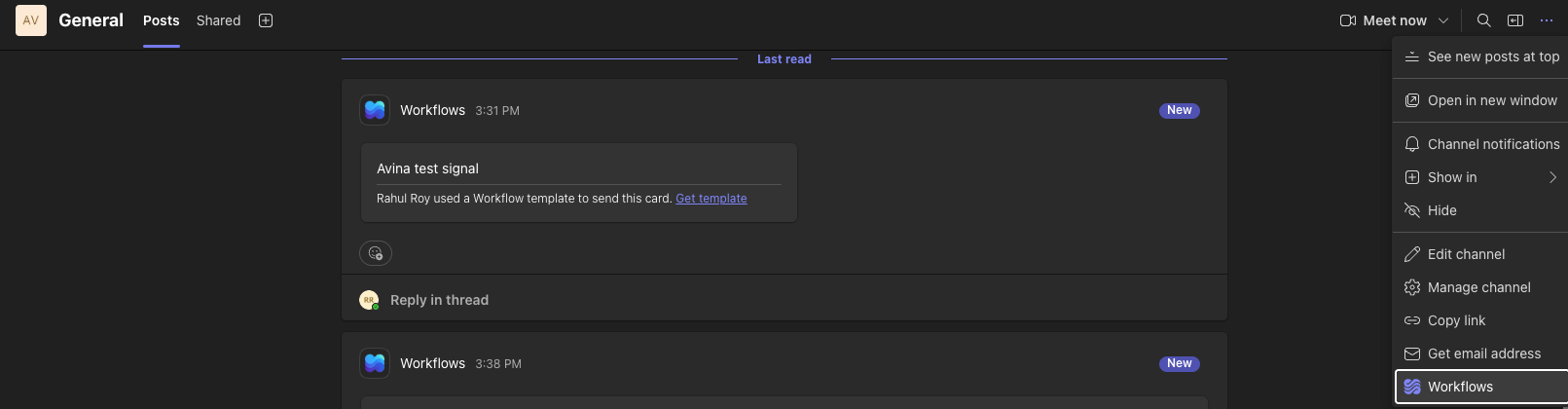
2
Pick the webhook template
Select Send webhook alerts to a channel. If it is not shown, search the templates for “webhook”.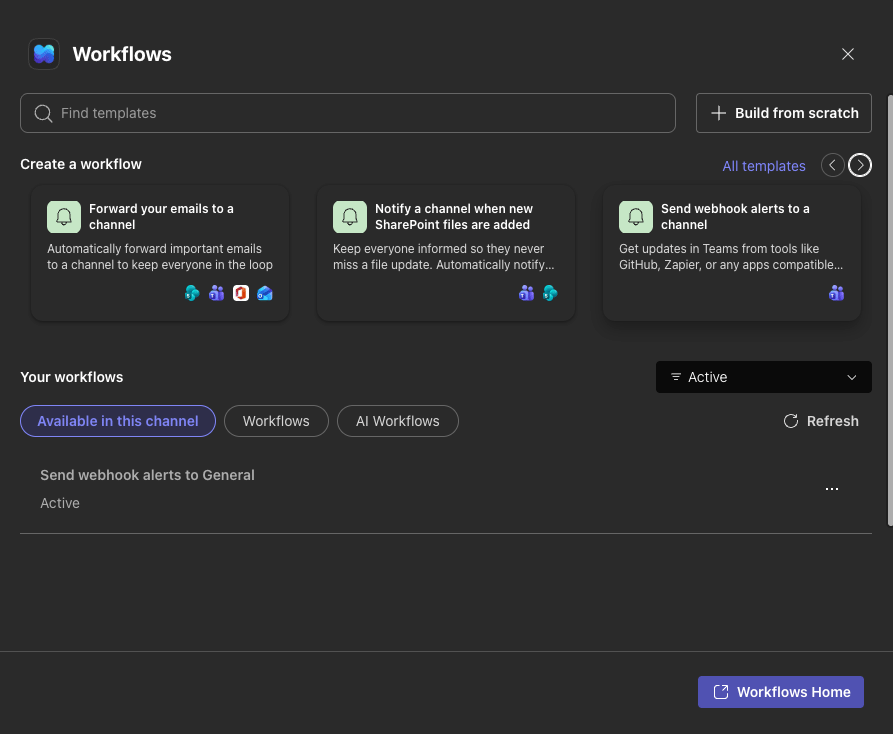
3
Name it and save
Give the workflow a name such as “Avina signals”, confirm the team and channel, and click Add workflow (labelled Save in some tenants). Teams may ask you to sign in to the Teams connector the first time.
4
Copy the webhook link
Teams opens the workflow’s details page. Click Copy webhook link. This is the URL you will paste into Avina.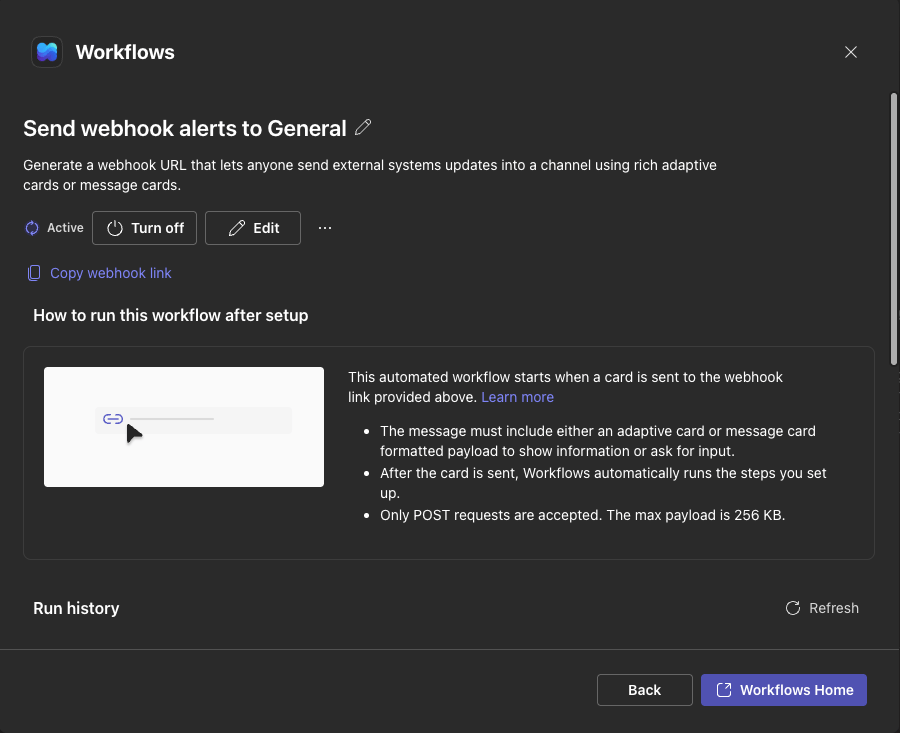
Step 2: Add the destination in Avina
1
Create or edit an automation
Go to Automations, create a new automation or open an existing one, and choose the signal and filters that should trigger it. See Automations for the full builder.
2
Choose Microsoft Teams Message as the action
Under Then…, select Send a Microsoft Teams Message and paste the webhook link into the URL field.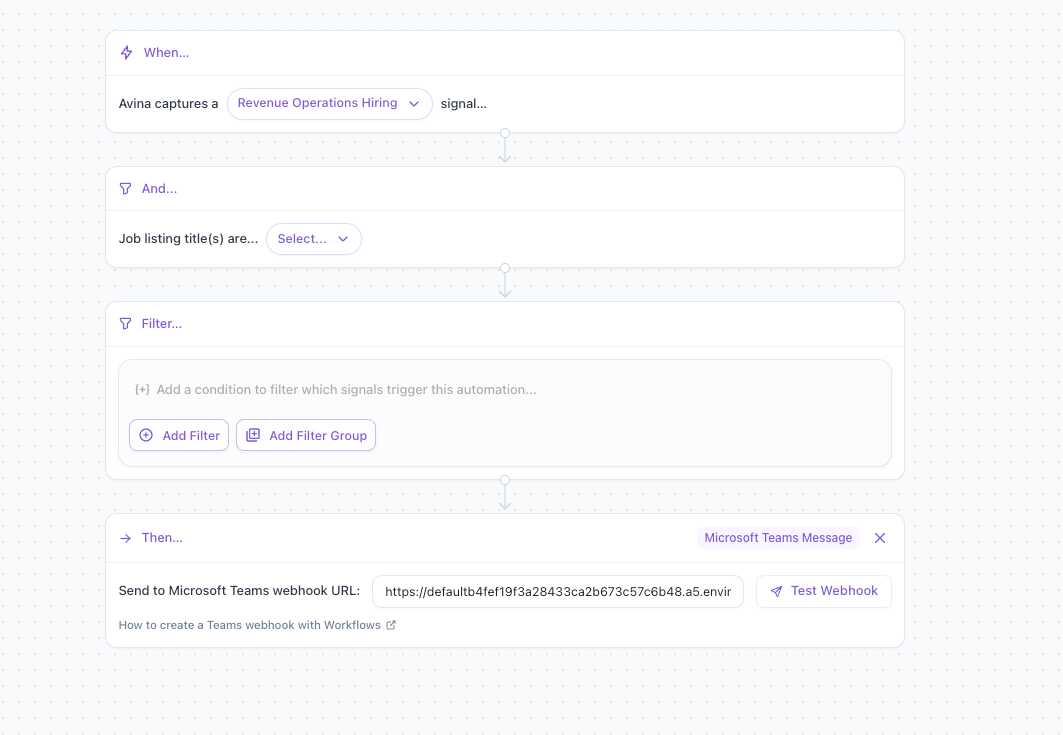
3
Test it
Click Test Webhook. A card titled “Avina test signal” appears in the channel within a few seconds.
If the test card arrives, the connection is working. Save and activate the automation.
What gets posted
Each signal the automation captures becomes one card in the channel with:- Headline and the signal summary, with links to the company and any sources
- Matched contacts, each with an email link and LinkedIn link when available
- Account, owner, ICP fit, and account score when Avina has them
- Buttons to open the company website and LinkedIn page
Good to know
- The workflow belongs to the person who created it, not to the channel. If that person leaves your organization, Teams disables the workflow and signals stop arriving. To avoid this, open the Workflows app, find the workflow under Your workflows, and add a co-owner.
- Do not edit the template’s steps. The template forwards Avina’s card straight to the channel. Changing the post action can stop the card from rendering.
- Private channels post the card on behalf of the workflow’s creator rather than as the Workflows bot.
- One channel per automation. To post the same signal to several channels, create one workflow per channel and one automation per webhook URL.