> ## Documentation Index
> Fetch the complete documentation index at: https://docs.avina.io/llms.txt
> Use this file to discover all available pages before exploring further.
# Push to Salesforce
Avina automatically creates records in the **Avina Signals** custom object (`AvinaSignals__c`) inside your Salesforce org every time a signal fires. This custom object stores all signal data in a structured format that you can use for reporting, automation, and workflows.
\
Each record contains:
| Section | Details |
| --------------------------- | ------------------------------------------------------------------------------------------------------------------------ |
| **Human-readable sentence** | A short, plain-English summary of the signal (see example below). |
| **Tag line** | One or more lowercase "snake-case" tags that classify the signal. These tags power Salesforce reports, flows, and lists. |
| **Related records** | Automatic lookup relationships to relevant Account, Contact, and Opportunity records when available. |
Example record (what you'll see in your Salesforce org):
> **Signal Summary:** Avina Alert: Dev Security hired Brandon Riley as their new Chief Revenue Officer. He joined the company in Feb 2025 and is based in Ann Arbor, Michigan, United States.\
> **Tags:** avina\_new\_hire\_signal
***
## Setup Guide
Before Avina can push signals to your Salesforce org, you'll need to create the Avina Signals custom object that will store the signal data.
### Creating the Custom Object
1. **Download the object definition:**
Download CSV file that defines the custom object attributes.
2. **Navigate to Object Manager:** In your Salesforce org, go to **Setup → Object Manager**.
3. **Create Object from Spreadsheet:** Click **Create** and then select **Create Object from Spreadsheet**.
4. **Upload the CSV:** Upload the downloaded CSV file to create the `AvinaSignals__c` custom object.
5. **Complete the import:** Add the CSV to the import list. If you encounter any issues, try using an incognito/private browser window.
6. **Find your new object:** Go back to **Object Manager** and locate your newly created **Avina Signals** object.
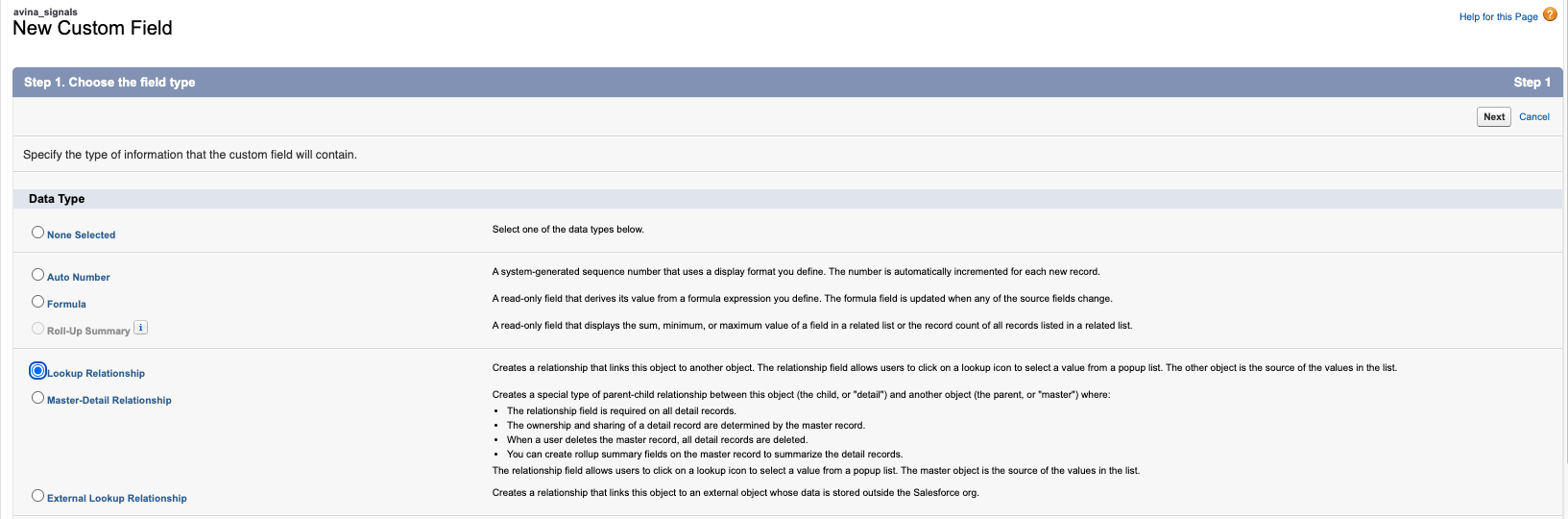
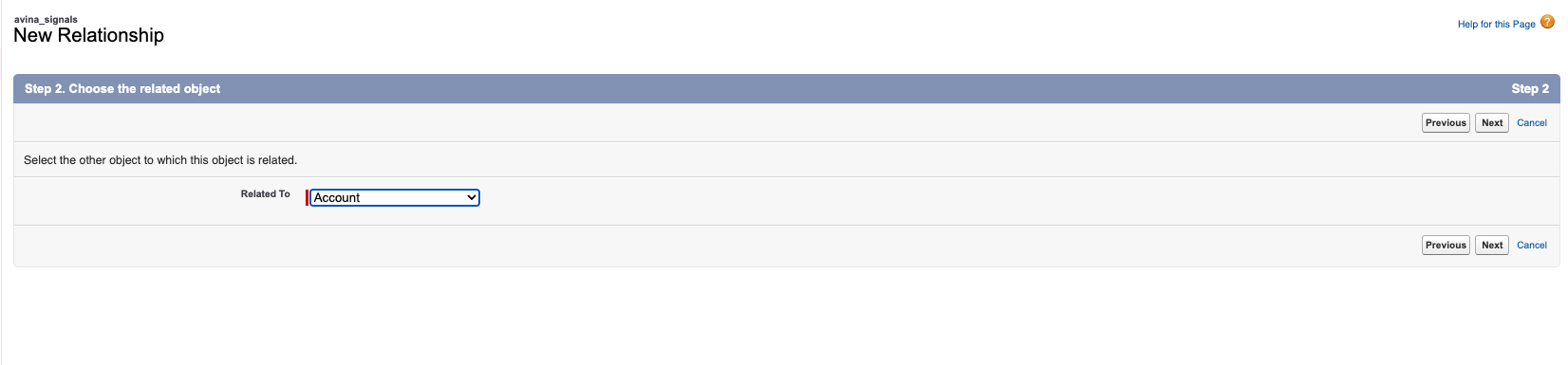
7. **Create Account lookup field:** Click into the Avina Signals object, then click **New** to create a new field. Select **Lookup** as the field type, choose **Account** as the related object, then click **Next** through the setup process and **Save**.
 8. **Create Contact lookup field:** Repeat step 7, but this time select **Contact** as the related object for the lookup field.
9. **(Optional) Create Lead lookup field:** Repeat step 7, but this time select **Lead** as the related object for the lookup field.
10. **Enable push settings for Salesforce:** Go to **Settings → Integrations** in the Avina dashboard. Select the Salesforce connector and enable **Push resolved contacts to Salesforce**, **Push ICP contacts to Salesforce**, and **Push signals to account and contact activity**.
11. **All done!** Once complete, Avina will start creating records in your Avina Signals custom object with proper relationships to Account and Contact records as signals are created.
***
### Tag reference
| Signal | Tag(s) Avina writes |
| -------------------------------------- | ------------------------------------------ |
| **Re-engagement Signal** | `avina_reengagement_signal` |
| **Outbound Signal** | `avina_outbound_signal` |
| **Champion Movement Signal** | `avina_champion_movement_signal` |
| **New Hire Signal** | `avina_new_hire_signal` |
| **Social Activity Signal** | `avina_social_activity_signal` |
| **Job Posting Signal (Account-level)** | `avina_job_posting_signal` |
| **General Engagement Signal** | `avina_general_engagement_signal` |
| **Web Visit** | `avina_web_visit_signal` |
| **Marketing Email** | `avina_marketing_email_signal` |
| **Ad Engagement** | `avina_ad_engagement_signal` |
| **Ad Impression** | `avina_ad_impression_signal` |
| **Other / Misc.** | `avina_other_signal` *(plus context tags)* |
> **Tip:** Some signals carry **multiple** tags. E.g., a *Champion* visiting the site will include both `avina_web_visit_signal` **and** `avina_champion_movement_signal`.
***
### Triggering automations with Salesforce Flow Builder
| Goal | High-level steps |
| ------------------------------------------------------------ | ------------------------------------------------------------------------------------------------------------------------------------------------------------------------------- |
| **Slack / email alert to AE when a new CRO is hired** | *Object:* **Avina Signals** → *Trigger:* *A record is created*.*Entry Condition:* `Tags CONTAINS 'avina_new_hire_signal'`.*Action:* *Send Slack notification* or *Email Alert*. |
| **Auto-create follow-up Task on champion movement** | Same trigger with tag `avina_champion_movement_signal`; *Action:* *Create Task* assigned to related Account Owner. |
| **Add Account to Outreach sequence when job listings spike** | Trigger on `avina_job_posting_signal`; *Action:* call Outreach API via Flow → *Add Prospect to Sequence*. |
***
### Example use-cases
| Use-case | How to set it up in Salesforce |
| ------------------------------------------ | ------------------------------------------------------------------------------ |
| **Nurture new champions** | Report on `avina_champion_movement_signal` → Campaign → Pardot/Marketing Cloud |
| **AE alert: prospect gets new CRO** | Flow Builder on `avina_new_hire_signal` → Campaign → Outreach |
| **Ad retargeting for recent web visitors** | Report on `avina_web_visit_signal` → Audience list in Advertising Studio |
| **Upsell play when job listings spike** | Flow on `avina_job_posting_signal` → update custom *Upsell Probability* field |
***
### Best practices & FAQs
| Question | Answer |
| ----------------------------------------- | --------------------------------------------------------------------------------------------------------------------------------- |
| **Why a custom object instead of Tasks?** | Custom objects provide more flexibility for storing signal-specific data and enable better reporting and automation capabilities. |
| **How fast do records appear?** | Near real-time. Most users see signal records within \< 2 minutes of the triggering event. |
| **Can I customize the object structure?** | The initial setup uses a standardized structure for consistency. Contact support for advanced customization needs. |
***
8. **Create Contact lookup field:** Repeat step 7, but this time select **Contact** as the related object for the lookup field.
9. **(Optional) Create Lead lookup field:** Repeat step 7, but this time select **Lead** as the related object for the lookup field.
10. **Enable push settings for Salesforce:** Go to **Settings → Integrations** in the Avina dashboard. Select the Salesforce connector and enable **Push resolved contacts to Salesforce**, **Push ICP contacts to Salesforce**, and **Push signals to account and contact activity**.
11. **All done!** Once complete, Avina will start creating records in your Avina Signals custom object with proper relationships to Account and Contact records as signals are created.
***
### Tag reference
| Signal | Tag(s) Avina writes |
| -------------------------------------- | ------------------------------------------ |
| **Re-engagement Signal** | `avina_reengagement_signal` |
| **Outbound Signal** | `avina_outbound_signal` |
| **Champion Movement Signal** | `avina_champion_movement_signal` |
| **New Hire Signal** | `avina_new_hire_signal` |
| **Social Activity Signal** | `avina_social_activity_signal` |
| **Job Posting Signal (Account-level)** | `avina_job_posting_signal` |
| **General Engagement Signal** | `avina_general_engagement_signal` |
| **Web Visit** | `avina_web_visit_signal` |
| **Marketing Email** | `avina_marketing_email_signal` |
| **Ad Engagement** | `avina_ad_engagement_signal` |
| **Ad Impression** | `avina_ad_impression_signal` |
| **Other / Misc.** | `avina_other_signal` *(plus context tags)* |
> **Tip:** Some signals carry **multiple** tags. E.g., a *Champion* visiting the site will include both `avina_web_visit_signal` **and** `avina_champion_movement_signal`.
***
### Triggering automations with Salesforce Flow Builder
| Goal | High-level steps |
| ------------------------------------------------------------ | ------------------------------------------------------------------------------------------------------------------------------------------------------------------------------- |
| **Slack / email alert to AE when a new CRO is hired** | *Object:* **Avina Signals** → *Trigger:* *A record is created*.*Entry Condition:* `Tags CONTAINS 'avina_new_hire_signal'`.*Action:* *Send Slack notification* or *Email Alert*. |
| **Auto-create follow-up Task on champion movement** | Same trigger with tag `avina_champion_movement_signal`; *Action:* *Create Task* assigned to related Account Owner. |
| **Add Account to Outreach sequence when job listings spike** | Trigger on `avina_job_posting_signal`; *Action:* call Outreach API via Flow → *Add Prospect to Sequence*. |
***
### Example use-cases
| Use-case | How to set it up in Salesforce |
| ------------------------------------------ | ------------------------------------------------------------------------------ |
| **Nurture new champions** | Report on `avina_champion_movement_signal` → Campaign → Pardot/Marketing Cloud |
| **AE alert: prospect gets new CRO** | Flow Builder on `avina_new_hire_signal` → Campaign → Outreach |
| **Ad retargeting for recent web visitors** | Report on `avina_web_visit_signal` → Audience list in Advertising Studio |
| **Upsell play when job listings spike** | Flow on `avina_job_posting_signal` → update custom *Upsell Probability* field |
***
### Best practices & FAQs
| Question | Answer |
| ----------------------------------------- | --------------------------------------------------------------------------------------------------------------------------------- |
| **Why a custom object instead of Tasks?** | Custom objects provide more flexibility for storing signal-specific data and enable better reporting and automation capabilities. |
| **How fast do records appear?** | Near real-time. Most users see signal records within \< 2 minutes of the triggering event. |
| **Can I customize the object structure?** | The initial setup uses a standardized structure for consistency. Contact support for advanced customization needs. |
***