> ## Documentation Index
> Fetch the complete documentation index at: https://docs.avina.io/llms.txt
> Use this file to discover all available pages before exploring further.
# Microsoft Teams Integration
> Post Avina signals into a Microsoft Teams channel with a Teams Workflow webhook
## Overview
Avina posts signals to Microsoft Teams through an incoming webhook that you create in Teams with the built-in **Workflows** app. There is nothing to install or approve on the Avina side: you create the workflow, paste its URL into an automation, and every signal that automation captures is posted to the channel as a card.
Workflows requires a Microsoft 365 work or school account (Business Basic or higher, or any Enterprise plan). Teams (free) and Teams Essentials do not include Workflows, so the option will not appear there.
## Step 1: Create the webhook in Teams
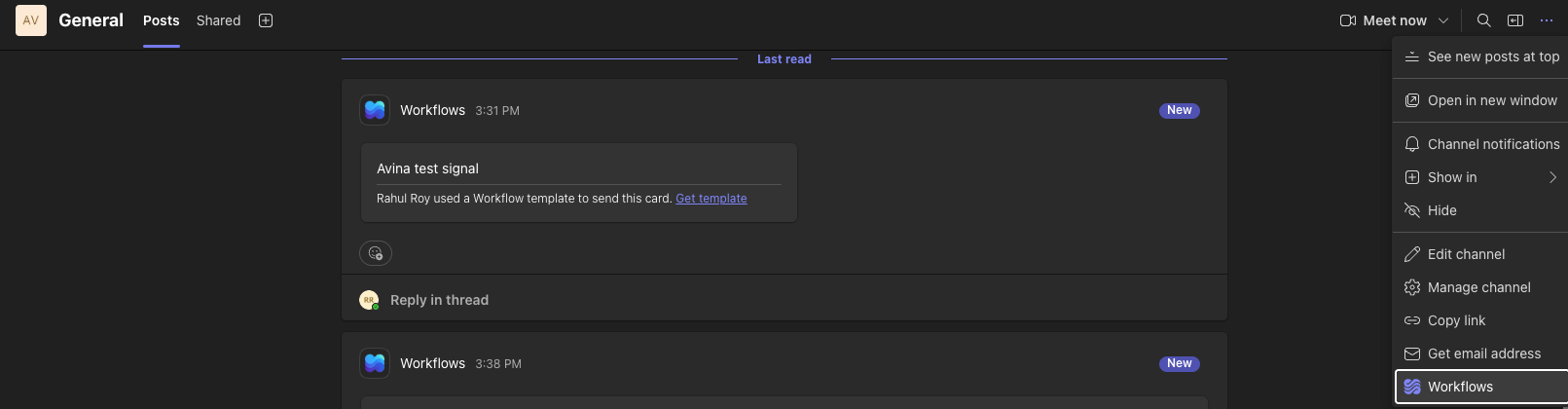
In Teams, go to the channel that should receive signals. Click the **⋯** next to the channel name and choose **Workflows**.
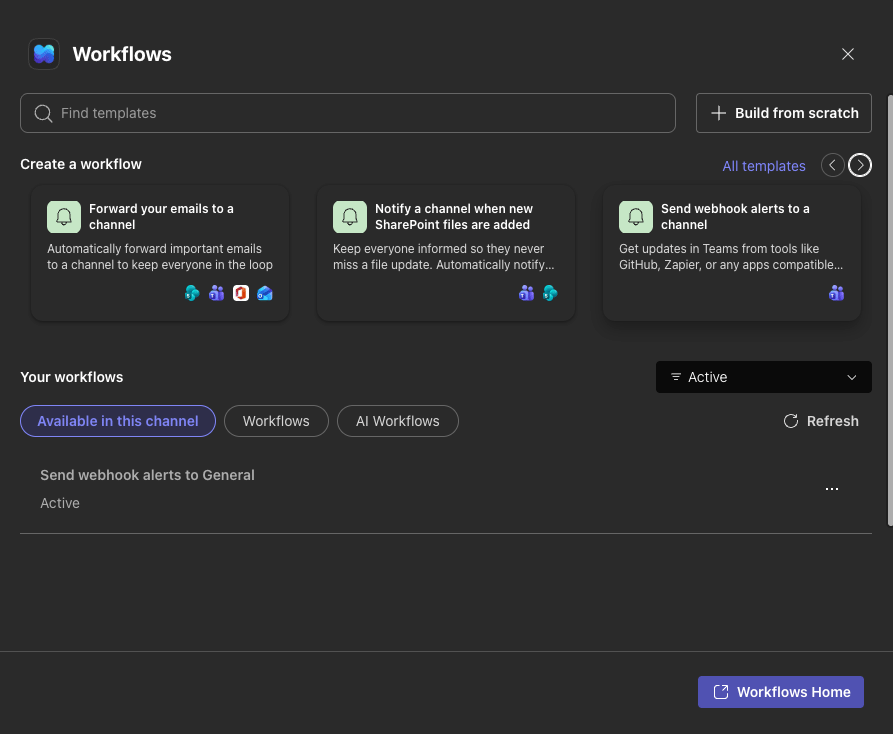
 Select **Send webhook alerts to a channel**. If it is not shown, search the templates for "webhook".
 Give the workflow a name such as "Avina signals", confirm the team and channel, and click **Add workflow** (labelled **Save** in some tenants). Teams may ask you to sign in to the Teams connector the first time.
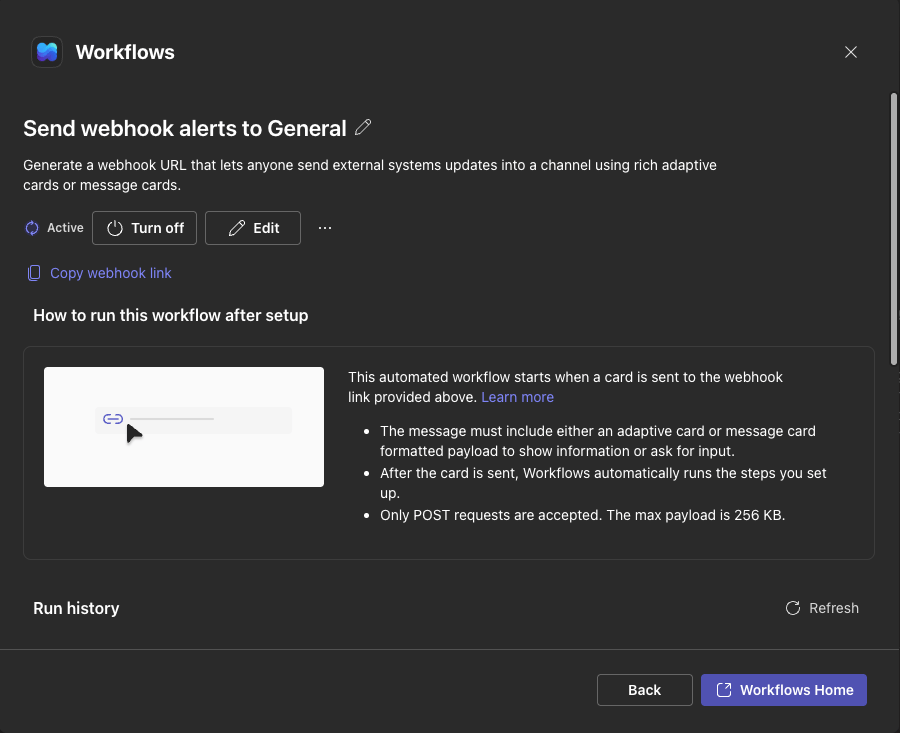
Teams opens the workflow's details page. Click **Copy webhook link**. This is the URL you will paste into Avina.
Give the workflow a name such as "Avina signals", confirm the team and channel, and click **Add workflow** (labelled **Save** in some tenants). Teams may ask you to sign in to the Teams connector the first time.
Teams opens the workflow's details page. Click **Copy webhook link**. This is the URL you will paste into Avina.
 Treat the webhook link like a password. Anyone who has it can post to the channel. If it leaks, delete the workflow and create a new one.
## Step 2: Add the destination in Avina
Go to **Automations**, create a new automation or open an existing one, and choose the signal and filters that should trigger it. See [Automations](/features/automations) for the full builder.
Under **Then…**, select **Send a Microsoft Teams Message** and paste the webhook link into the URL field.
Treat the webhook link like a password. Anyone who has it can post to the channel. If it leaks, delete the workflow and create a new one.
## Step 2: Add the destination in Avina
Go to **Automations**, create a new automation or open an existing one, and choose the signal and filters that should trigger it. See [Automations](/features/automations) for the full builder.
Under **Then…**, select **Send a Microsoft Teams Message** and paste the webhook link into the URL field.
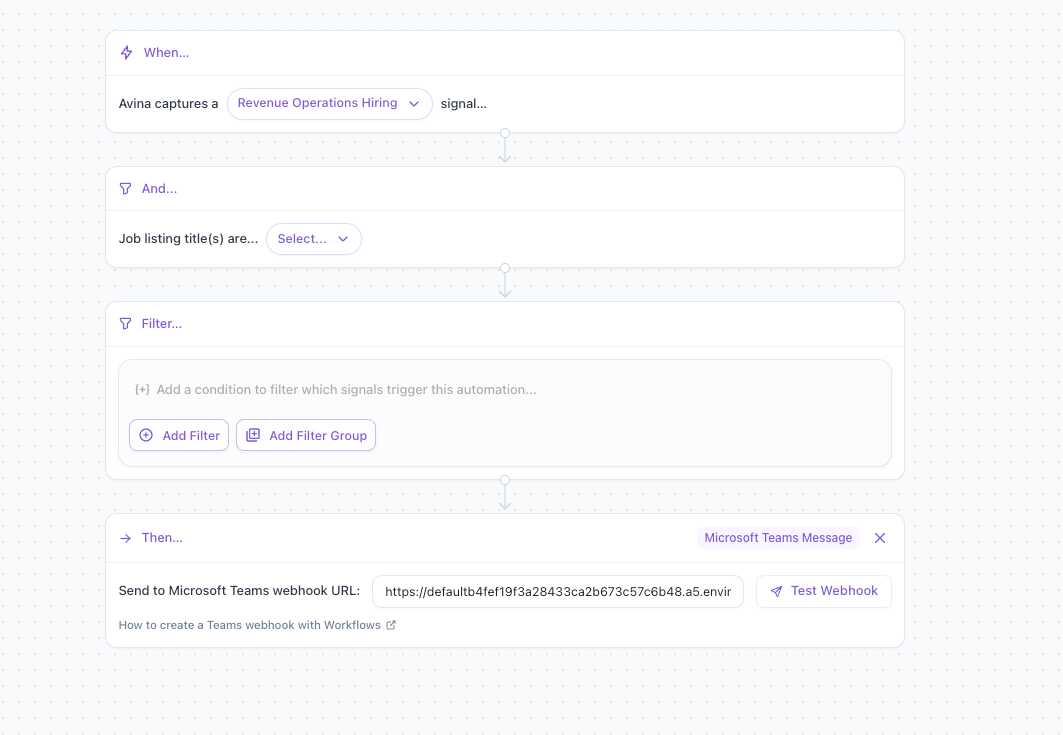 Click **Test Webhook**. A card titled "Avina test signal" appears in the channel within a few seconds.
If the test card arrives, the connection is working. Save and activate the automation.
## What gets posted
Each signal the automation captures becomes one card in the channel with:
* **Headline** and the signal summary, with links to the company and any sources
* **Matched contacts**, each with an email link and LinkedIn link when available
* **Account**, **owner**, **ICP fit**, and **account score** when Avina has them
* **Buttons** to open the company website and LinkedIn page
Existing signals are not replayed when you activate the automation. Only signals captured after activation are posted.
## Good to know
* **The workflow belongs to the person who created it, not to the channel.** If that person leaves your organization, Teams disables the workflow and signals stop arriving. To avoid this, open the **Workflows** app, find the workflow under **Your workflows**, and add a co-owner.
* **Do not edit the template's steps.** The template forwards Avina's card straight to the channel. Changing the post action can stop the card from rendering.
* **Private channels** post the card on behalf of the workflow's creator rather than as the Workflows bot.
* **One channel per automation.** To post the same signal to several channels, create one workflow per channel and one automation per webhook URL.
## Troubleshooting
| Symptom | What to check |
| ----------------------------------------- | -------------------------------------------------------------------------------------------------------------------------------------- |
| Test Webhook fails | Copy the link again from the workflow details page. The URL is long and easy to truncate. |
| Test works but signals never arrive | The automation is paused, or its trigger and filters do not match any new signals. Check the automation's enrollment history in Avina. |
| Signals stopped after working for a while | The workflow was turned off or its owner left the organization. Open **Workflows** → **Your workflows** and confirm it is **Active**. |
| Card arrives without buttons | Your Teams client is out of date. Buttons render on current desktop, web, and mobile clients. |
## Stopping delivery
Pause the automation in Avina, or turn the workflow off in Teams: open **Workflows** → **Your workflows**, click **⋯** next to the workflow, and choose **Turn off** or **Delete**.
Click **Test Webhook**. A card titled "Avina test signal" appears in the channel within a few seconds.
If the test card arrives, the connection is working. Save and activate the automation.
## What gets posted
Each signal the automation captures becomes one card in the channel with:
* **Headline** and the signal summary, with links to the company and any sources
* **Matched contacts**, each with an email link and LinkedIn link when available
* **Account**, **owner**, **ICP fit**, and **account score** when Avina has them
* **Buttons** to open the company website and LinkedIn page
Existing signals are not replayed when you activate the automation. Only signals captured after activation are posted.
## Good to know
* **The workflow belongs to the person who created it, not to the channel.** If that person leaves your organization, Teams disables the workflow and signals stop arriving. To avoid this, open the **Workflows** app, find the workflow under **Your workflows**, and add a co-owner.
* **Do not edit the template's steps.** The template forwards Avina's card straight to the channel. Changing the post action can stop the card from rendering.
* **Private channels** post the card on behalf of the workflow's creator rather than as the Workflows bot.
* **One channel per automation.** To post the same signal to several channels, create one workflow per channel and one automation per webhook URL.
## Troubleshooting
| Symptom | What to check |
| ----------------------------------------- | -------------------------------------------------------------------------------------------------------------------------------------- |
| Test Webhook fails | Copy the link again from the workflow details page. The URL is long and easy to truncate. |
| Test works but signals never arrive | The automation is paused, or its trigger and filters do not match any new signals. Check the automation's enrollment history in Avina. |
| Signals stopped after working for a while | The workflow was turned off or its owner left the organization. Open **Workflows** → **Your workflows** and confirm it is **Active**. |
| Card arrives without buttons | Your Teams client is out of date. Buttons render on current desktop, web, and mobile clients. |
## Stopping delivery
Pause the automation in Avina, or turn the workflow off in Teams: open **Workflows** → **Your workflows**, click **⋯** next to the workflow, and choose **Turn off** or **Delete**.